Installation
One installer per platform, from the latest release on GitHub. The home page picks the right file for your machine.
| Platform | File | Architectures |
|---|---|---|
| macOS 10.15+ | .dmg |
Apple Silicon, Intel |
| Windows 10+ | -setup.exe |
x64, ARM64 |
| Linux | .deb, .rpm, .AppImage |
x86_64, aarch64 |
Install
- Open the
.dmgand drag StackVo into Applications. - Open it. The first time, macOS may say "StackVo is damaged and can't be opened". That message is about the quarantine attribute, not the file — see below.
Right-click the app → Open → Open again, or from a terminal:
- Run the
-setup.exe. - SmartScreen shows "Windows protected your PC". Click More info, then Run anyway.
- Finish the installer and start StackVo from the Start menu.
Pick the format your distribution uses:
# Debian, Ubuntu
sudo dpkg -i StackVo_<version>_amd64.deb

# Fedora, RHEL, openSUSE
sudo rpm -i StackVo-<version>-1.x86_64.rpm

# Any distribution
chmod +x StackVo_<version>_amd64.AppImage
./StackVo_<version>_amd64.AppImage
Replace amd64 / x86_64 with arm64 / aarch64 on an ARM machine.
Why the OS complains
Releases are not code-signed, and that is a decision rather than an oversight. The app is distributed from GitHub Releases and nowhere else, and an Apple Developer membership and an Authenticode certificate are recurring costs with an identity attached. In exchange:
- every release publishes
SHA256SUMS.txtbeside its files, so you can check what you downloaded; - the app's own updater verifies a minisign signature over the update manifest before it installs anything.
Check it worked
Open StackVo. The dashboard shows a Docker engine card: running, with the platform it found. If Docker is not running, the card says so and offers a button to start it. That is the whole check — there is nothing to type.
Optional: the stackvo command line ships inside the app. Settings →
Tooling puts it on your PATH with a button; afterwards, in a terminal:
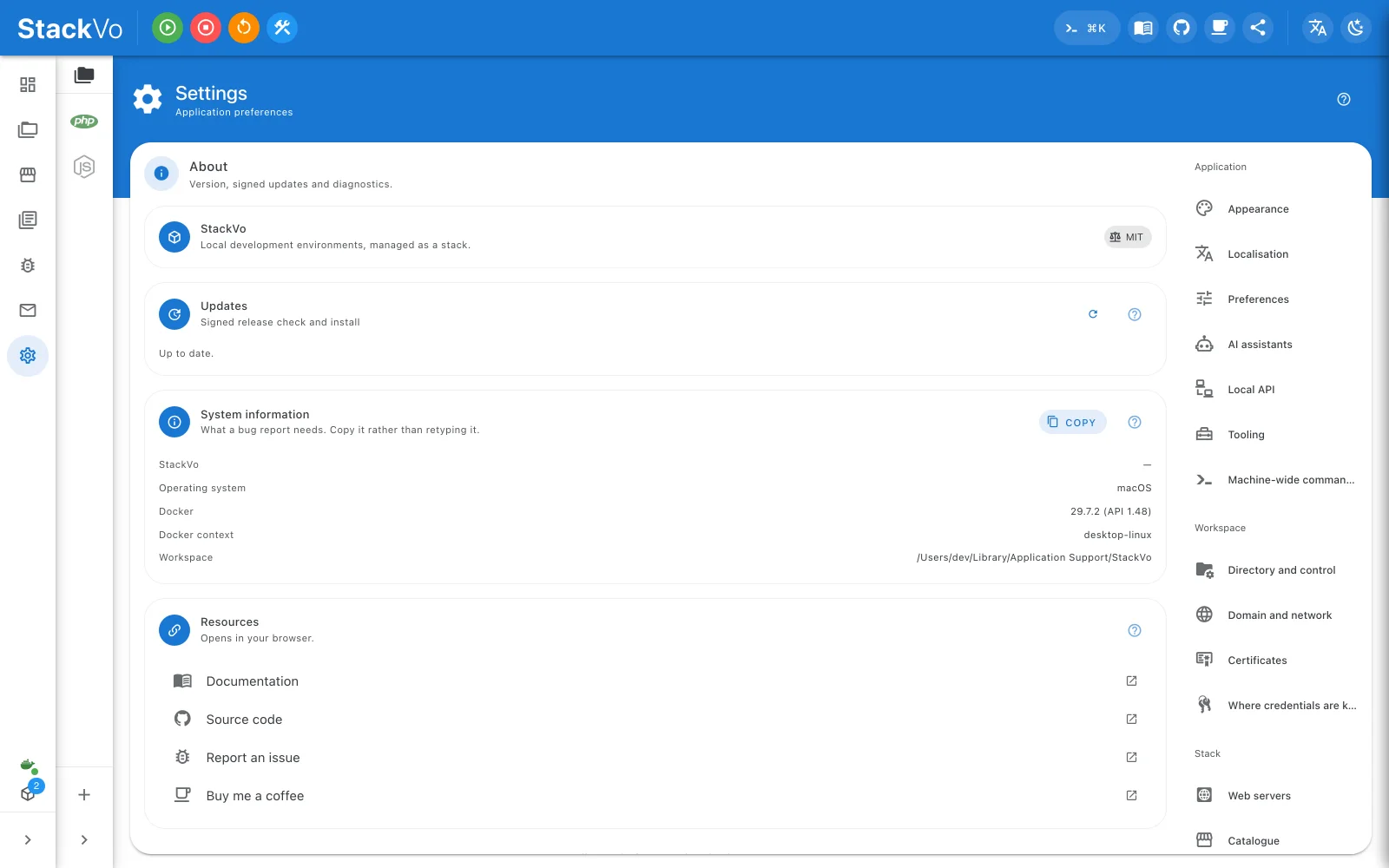
Updates
Settings → Updates checks for a new version and installs it. Updates are signed; a package that fails the check is not installed. Installing closes the app — your running containers are unaffected.
Also receive beta releases adds pre-releases to what the check offers. A beta install still gets every stable release, and a stable install is never offered a beta. The switch takes effect at the next launch.
Removing StackVo
Everything StackVo writes is in known places, so removal is a short list:
| What | Where | How |
|---|---|---|
| The app | Applications, Program Files, or the package | Delete it, or apt remove / rpm -e it |
| The workspace | ~/.stackvo by default (Settings → Workspace shows the path) |
Delete the folder. Your project code inside projects/ goes with it, so move that first if you want it. |
| Hosts entries | Your hosts file; Settings → Domain and network lists the lines | Remove the lines |
| The command line | A PATH line, if you added one | stackvo path-remove |
| The certificate authority | Your trust store, if you trusted it | mkcert -uninstall |
| Docker images and volumes | Docker's own store | docker system prune removes what no container uses |
Next: First run.